
Choosing a webcam for a desk is no longer only a question of resolution. Presenters may want a camera that follows them as they teach, clearer sound without a separate microphone, and enough control to work across calls and streams. The OBSBOT Tiny 3 Series puts those priorities together in a compact PTZ webcam range, but its headline feature list needs a little unpacking before it is an easy recommendation.
We reviewed the product information on the OBSBOT store. The series page presents Tiny 3 and Tiny 3 Lite as 4K webcams with AI tracking and spatial-audio features. Because capabilities can differ by variant, the useful buying question is whether the model you select includes the functions your desk workflow actually needs.
When you shop through the links in this article, the retailer may pay us a commission. Your price stays the same.
Key facts
- OBSBOT Tiny 3 Series is a 4K PTZ webcam range for calls, teaching and streaming at a desk.
- OBSBOT lists 4K at 30 fps and 1080p at 120 fps for the series page.
- The store describes AI Tracking 2.0, Voice Locator and a three-microphone array; confirm the selected variant’s specification.
- Tiny 3 and Tiny 3 Lite are the named models, with the official page linking to specifications, FAQ and software downloads.
- The camera suits people who want active framing; a fixed, seated setup may not use its tracking advantage.
A webcam with movement
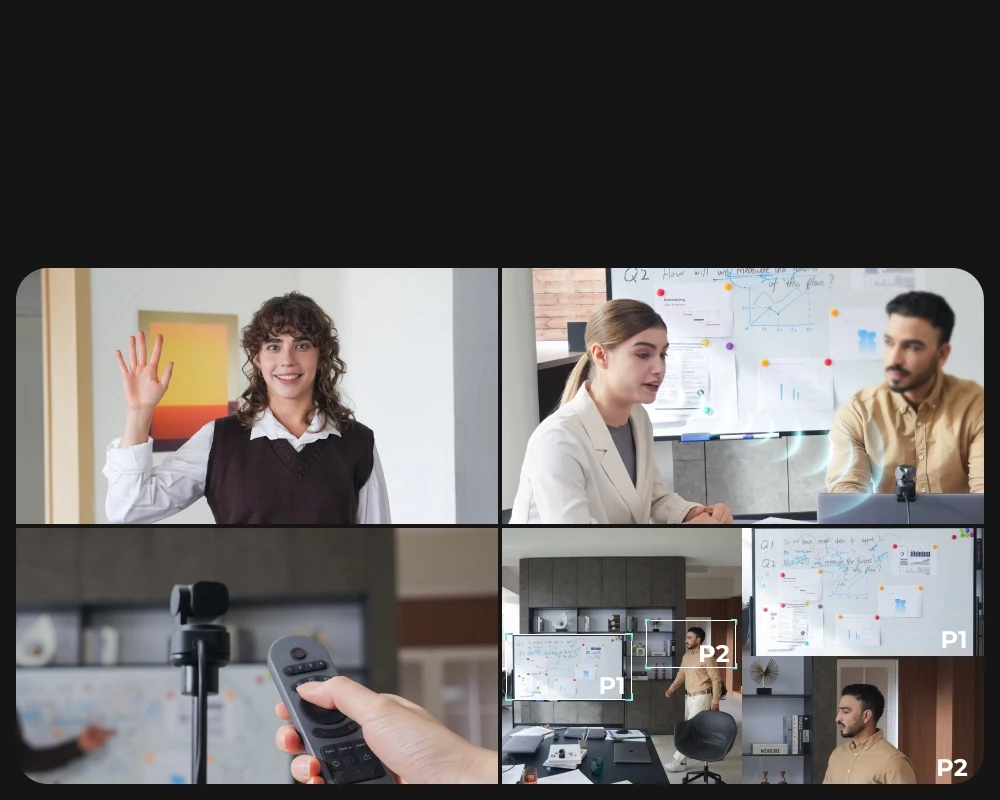
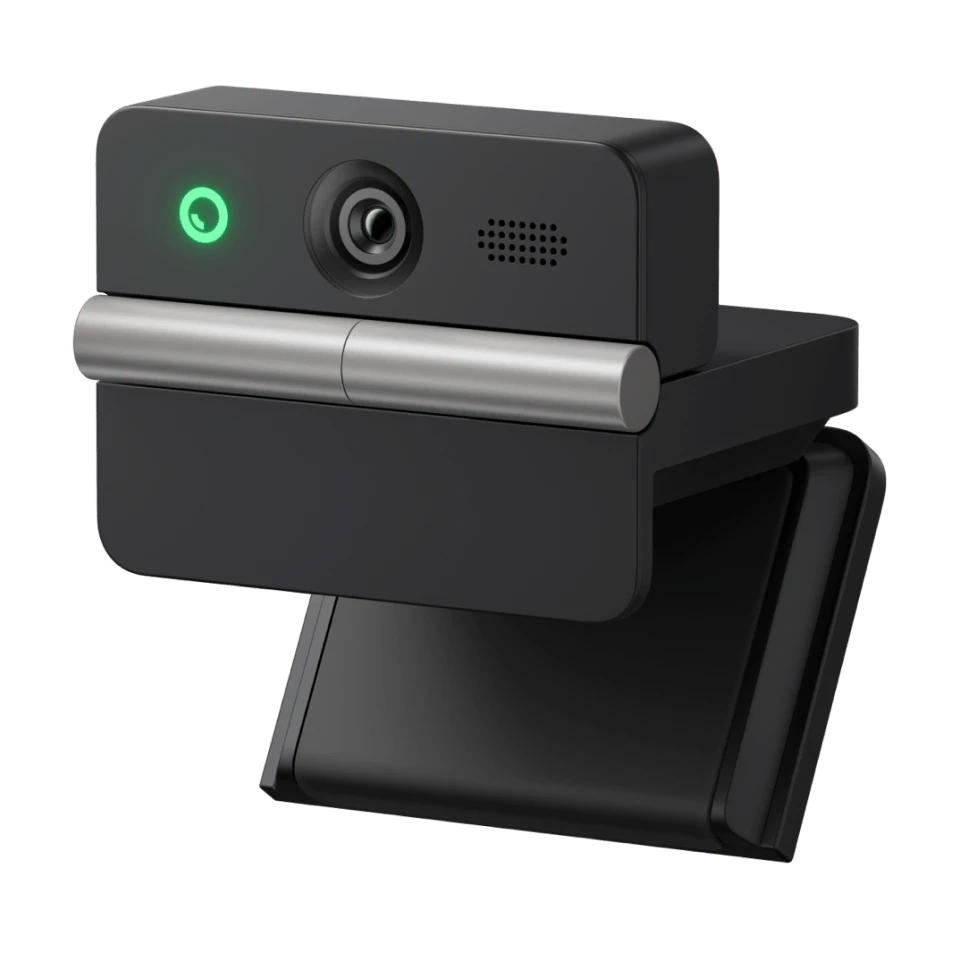
The defining idea behind the OBSBOT Tiny 3 Series is a PTZ camera that can adjust framing instead of simply pointing in one fixed direction. OBSBOT describes AI Tracking 2.0 and Voice Locator as tools that can follow a presenter. For someone teaching at a whiteboard, demonstrating a product, or shifting position during a presentation, that approach can reduce the need to return to a precise mark in front of the monitor.
The Tiny 3 Series product page lists a large 1/1.28-inch sensor and 50-megapixel resolution, alongside up to ISO 12800. Those specifications are relevant when indoor light varies, but they do not guarantee that every room will look polished. Window direction, background brightness, camera distance and screen placement still shape the result. The store also lists dual native ISO and DCG HDR among its imaging features, which may matter in scenes with bright and dim areas.
The series page also states 4K at 30 frames per second and 1080p at 120 frames per second. That gives a useful choice between detailed conventional video and smoother motion at a lower resolution. Most regular meetings do not require the faster mode, while demonstrations, movement and footage intended for slow motion may benefit. Check software and platform support before treating a camera’s maximum mode as your everyday call setting. The Tiny 3 Series video modes are useful only when your software can use them.
Audio built into the camera
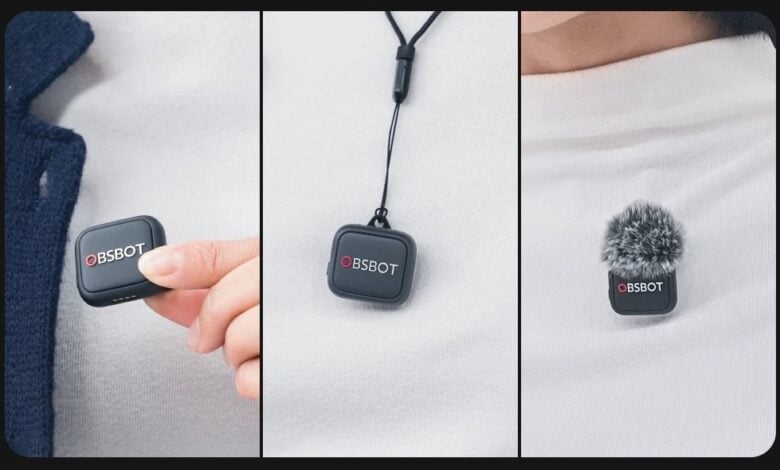
OBSBOT gives the microphone array unusual prominence. Its strongest appeal is one-device audio. Its page describes three microphones, 24-bit/48 kHz recording, a 69 dB signal-to-noise ratio and a maximum sound pressure level of 130 dB. It also lists several audio modes, AI noise reduction and a pure audio mode. For a home presenter, the appeal is a more integrated desk setup: fewer devices to mount and fewer cables to route than a webcam plus separate microphone. Review the Tiny 3 Series audio features alongside the listed microphone modes if sound is a priority.
The Tiny 3 Series details also mention spatial stereo capture and voice tracking. The product page says Voice Locator can detect a speaker and move the gimbal to frame them. That may suit a presenter who stands or changes position, especially for hands-free framing, but can feel unnecessary if every call is a static head-and-shoulders shot. Anyone recording critical voice work should compare this approach with a dedicated microphone and review the camera’s audio modes in the store documentation. The product overview is the starting point for checking the current feature list.
- Consider tracking if you move around while teaching, presenting or streaming.
- Prioritize a fixed view and straightforward setup if you stay seated for calls.
- Check whether the selected Tiny 3 or Tiny 3 Lite includes the specific audio and tracking features you need.
- Plan for lighting, camera placement and sound monitoring; the camera does not replace those parts of a setup.
Choosing between models
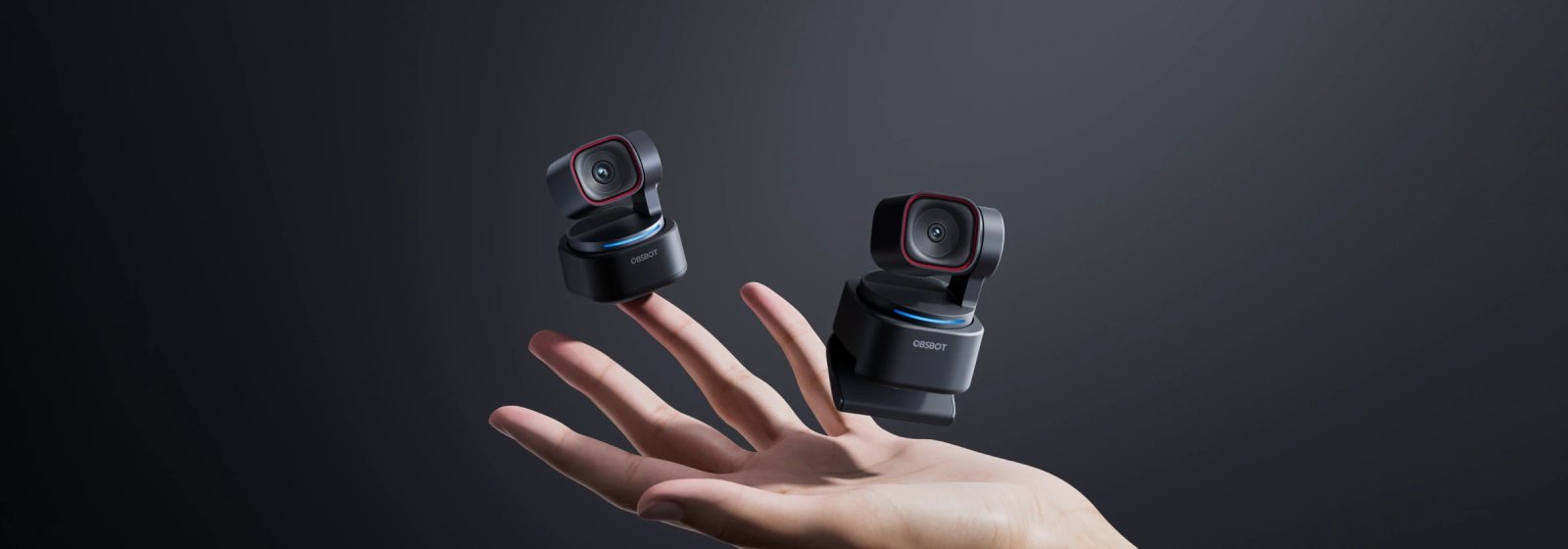
The series page introduces Tiny 3 and Tiny 3 Lite, so this is a small family rather than a single fixed configuration. That distinction is central to the buying experience. Treat the model check as essential. The series specification table should be checked before checkout. Do not assume every sensor, frame-rate, autofocus, tracking or audio feature applies equally to both versions. Compare the Tiny 3 model details and the Tiny 3 Lite details before deciding.
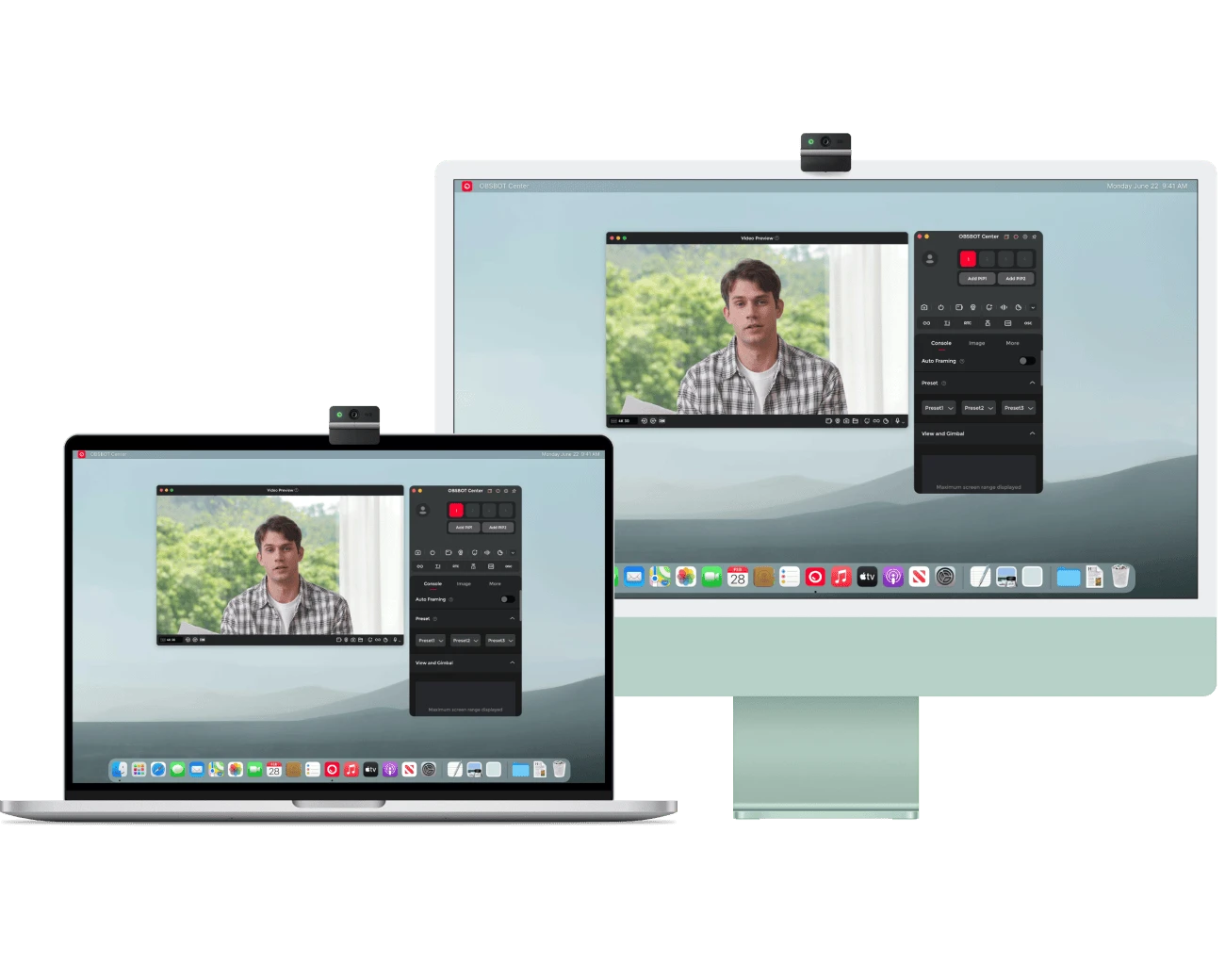
The OBSBOT Tiny 3 Series page also links to a dedicated specifications page, FAQs, product downloads and the Tiny 3 software area. That is a useful path for checking compatibility and setup before purchase. If the built-in microphone is not enough, OBSBOT also presents its Vox SE as an optional microphone accessory on the product page. Decide whether an accessory is actually needed before comparing the total setup cost, since model selection and add-ons affect what you spend.
For contrast, the OBSBOT Meet Flip is listed as a foldable 4K webcam. Its form is more relevant to someone who wants to pack a camera away or move it between locations, while Tiny 3’s PTZ framing points to a desk that stays assembled. The OBSBOT Tail 2 is described as a PTZR 4K live-production camera, a category aimed at larger productions than everyday calls. These alternatives help establish the Tiny’s intended scale rather than making this a broad range comparison.
That foldable design is useful context for the camera family: portability and active desk framing solve different problems.
Setup and buying checks
The store’s buying path is product-led: choose a model on the series page, then use the linked specifications and FAQ to resolve questions about features and setup. We recommend checking the official FAQ before adding accessories. The listed price can change, so use the store to check the current Tiny 3 price. The selected model, included accessories and any separate microphone will shape the overall setup cost. The downloads and software area is also linked from the product page.
- Compare Tiny 3 and Tiny 3 Lite in the official specifications, not only the series headline.
- Confirm your operating system, video-call software and connection requirements against the product documentation.
- Check what comes in the selected package and whether a microphone accessory is optional.
- Use the official FAQ and software download links to understand setup and ongoing support before ordering.
- Compare the Tiny 3 Series product page with your computer, lighting and recording needs before selecting a configuration.
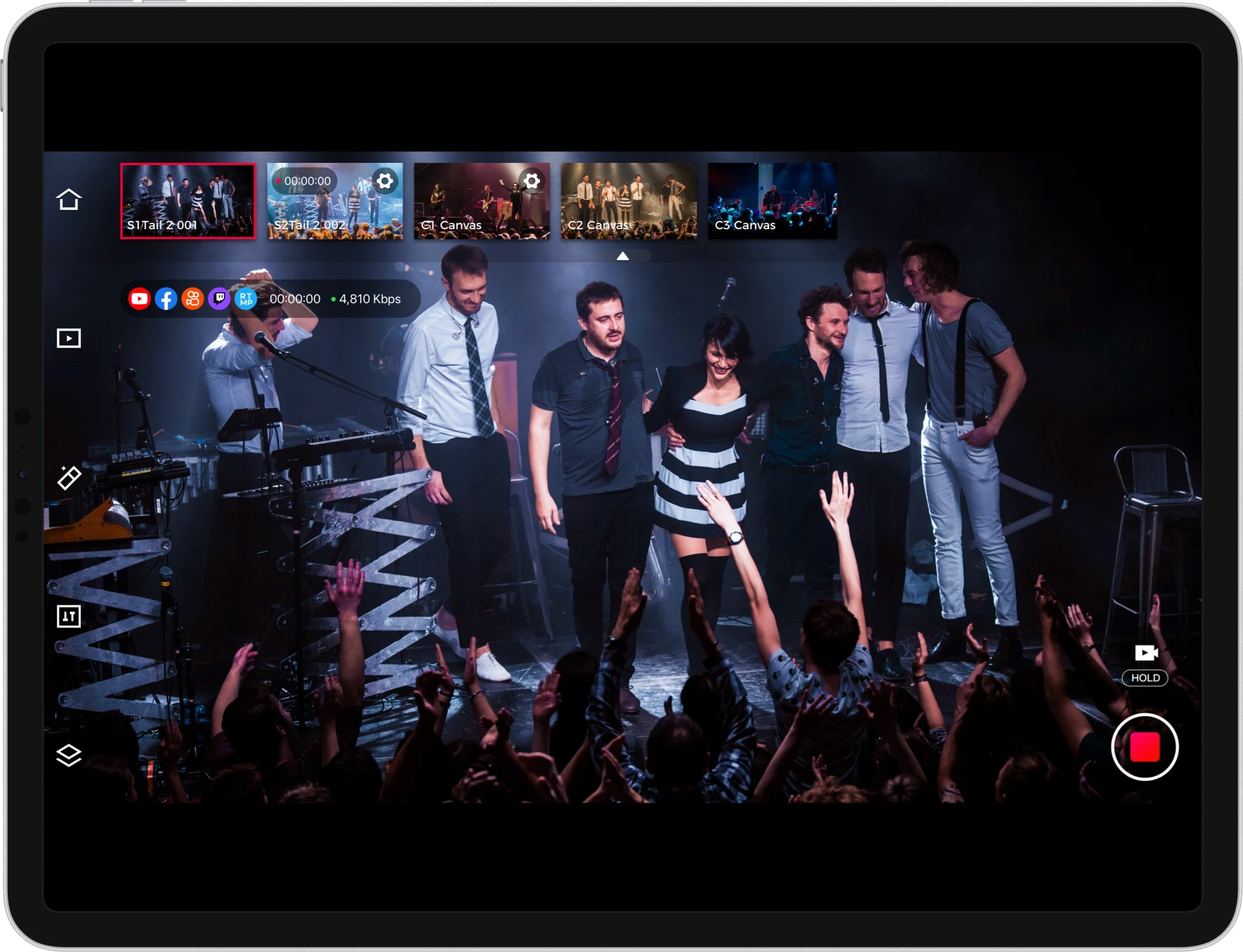
The production-oriented Tail 2 provides a useful contrast with a webcam designed around one presenter at a desk.
Where we land
For a presenter who moves while teaching, demonstrating or streaming from one desk, the OBSBOT Tiny 3 Series is a compelling fit on paper. The combination of PTZ framing, stated AI tracking, high-resolution imaging and built-in audio targets a real convenience problem: managing camera and voice capture without assembling several separate devices. We would start by comparing the standard Tiny 3 and Tiny 3 Lite against the particular tracking, sensor and audio functions that matter to the way you work. Revisit the current Tiny 3 Series configuration before choosing.
Its limitation is the model-level complexity. The series page’s broad feature set can make the range sound uniform, while the reader needs to verify which features belong to the chosen variant. And if you remain seated in consistent light, the active framing and multiple audio options may add little over a simpler webcam. Check the current OBSBOT Tiny 3 Series price and specifications before choosing.